 CloudyDupe
Your files live in the cloud. Keep a copy that does not.
Turning on Optimize Mac Storage gave you your disk space back and quietly took your files with it. What is left on the Mac is a placeholder. CloudyDupe pulls those cloud-only files down, copies them to an external drive or a local folder you choose, and then hands the temporary space back to macOS. Your own copy, on your own drive, readable with no account and no network.
- Runs on macOS 15 or later
- Files never pass through our servers
- No account, no sign-up
- Keeps working from the menu bar
The problem
A placeholder is not a file
iCloud Drive and iCloud Photos are sync services, not archives. They are excellent at making your files appear on every device, and they are indifferent to whether you still hold a copy of your own. Once storage optimization has evicted the local data, the only complete copy of your work lives in an account, behind a login, on someone else's disk.
What you have today
- Files that show a cloud icon and download only when opened, one at a time.
- A Photos library whose full-resolution originals are not on this Mac.
- No offline access on a plane, a job site, or a bad connection.
- An archive you cannot read if the account, the subscription, or the network is unavailable.
What CloudyDupe gives you
- A real folder tree of real files on a drive you hold in your hand, in the same structure as the source.
- Full-resolution photos and videos exported to that same destination, with a one-time purchase.
- Plain files, no container format. Open them in Finder on any Mac. No CloudyDupe required to read them.
- An itemized account of the run: what was copied, what was skipped and why, what failed.
How it works
Three choices, then it works while you do something else
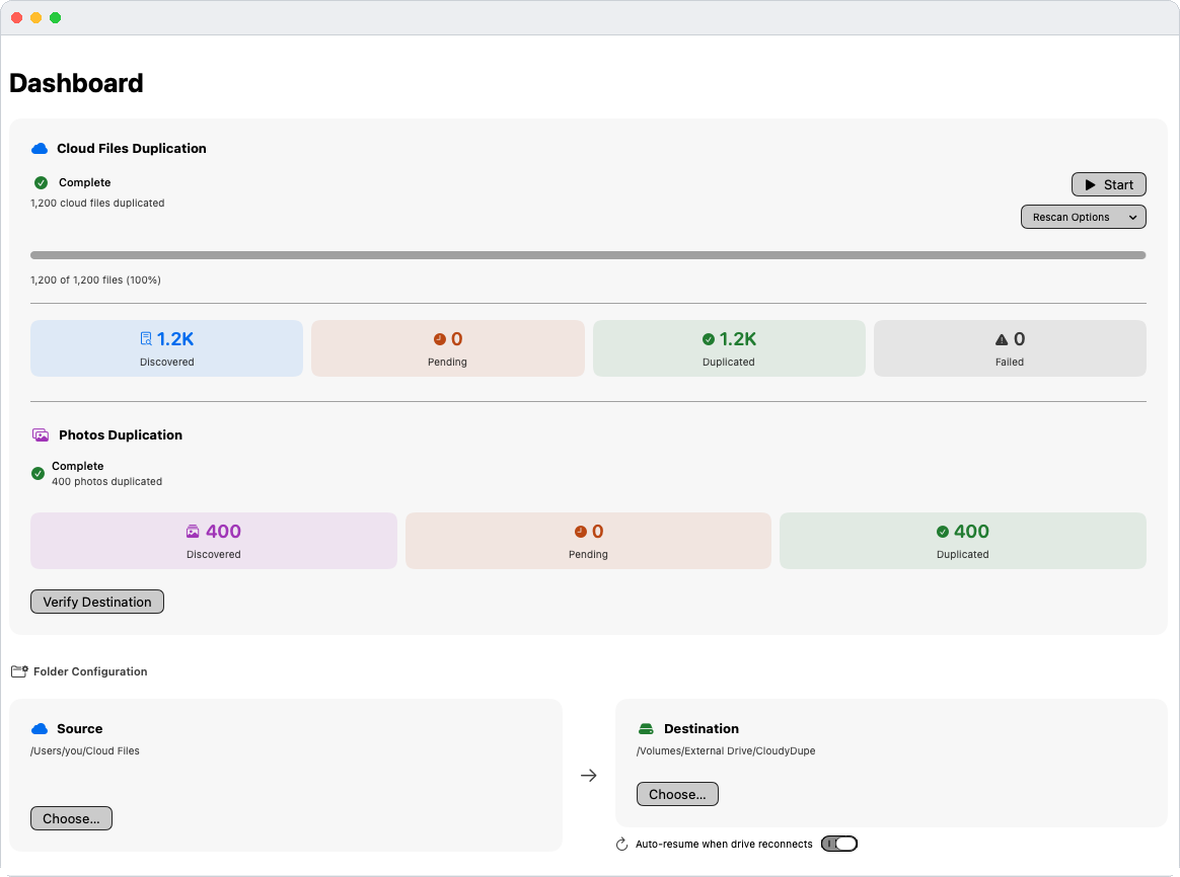
There is no project to configure and no schedule to learn. Point it at a folder, point it at a drive, press Start. CloudyDupe walks the source, asks macOS to download each cloud-only file just before it is needed, copies it to the destination, and releases the temporary local copy afterward.
Choose what to copy
Usually your iCloud Drive folder. Synced Desktop and Documents can be included too, once you grant access to them.
Choose where copies go
An external SSD, a spinning disk, a network volume, or another folder on this Mac. You pick it with the standard macOS file picker, so CloudyDupe only ever touches what you grant.
Press Start
Close the window whenever you like. The run continues from the menu bar, and the icon there tells you what is happening.
Features
Built for libraries that are too big to babysit
A first run over a large cloud-only library is measured in hours, sometimes days. Every feature below exists because a job that long has to survive sleep, a full disk, a yanked cable, and a change of mind.
Downloads cloud-only files on demand
CloudyDupe asks macOS to fetch each cloud-only item as its turn comes, copies it, and then asks macOS to release the local download again. Files that were already local stay untouched.
Your startup disk does not fill up
A temporary disk space ceiling caps how much is downloaded at once. When the queue reaches your limit it waits for space instead of pushing your Mac to zero bytes free.
Survives an unplugged drive
CloudyDupe watches for the destination volume. Turn on auto-resume and reconnecting the drive picks the run back up where it stopped rather than starting over.
Copies only what changed
Later runs compare the destination against the source and copy the difference. Choose Fast, which compares size and modification date, or Thorough, which also compares a checksum.
Exclusions, by file or folder
After discovery you get a browsable tree of everything found. Uncheck the branches you do not want. Search it by name when the tree is enormous.
A speed dial, because it goes to 11
Processing speed runs from a gentle crawl to full tilt, with a separate limit on concurrent downloads. Throttle it down and keep working, or open it up overnight.
Skipped items, with the reason
Items with nothing behind them to copy, such as a broken alias, are listed as skipped rather than counted as failures. A separate window shows the whole list and why each one was skipped.
A menu bar that explains itself
Hover the icon and it names the exact condition: running, waiting on space, waiting on the drive, needing folder access. VoiceOver reads the same text.
Verify the destination yourself
For Photos, Verify Destination re-reads the copied files back off the drive and compares checksums. You start it, because on a network volume it can take hours.
While it runs
You are never guessing what it is doing
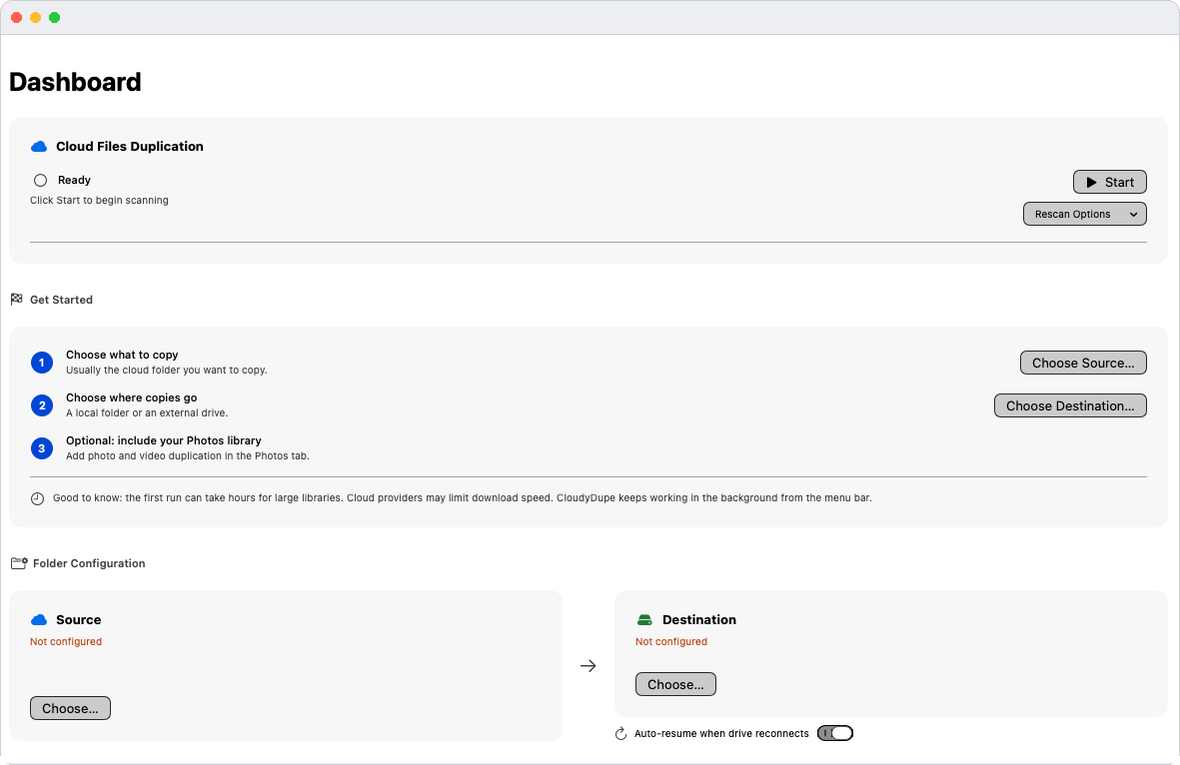
Long jobs go wrong when they are silent. CloudyDupe reports the phase it is in, the file it is on, the counts on both sides, and an estimate for the rest.
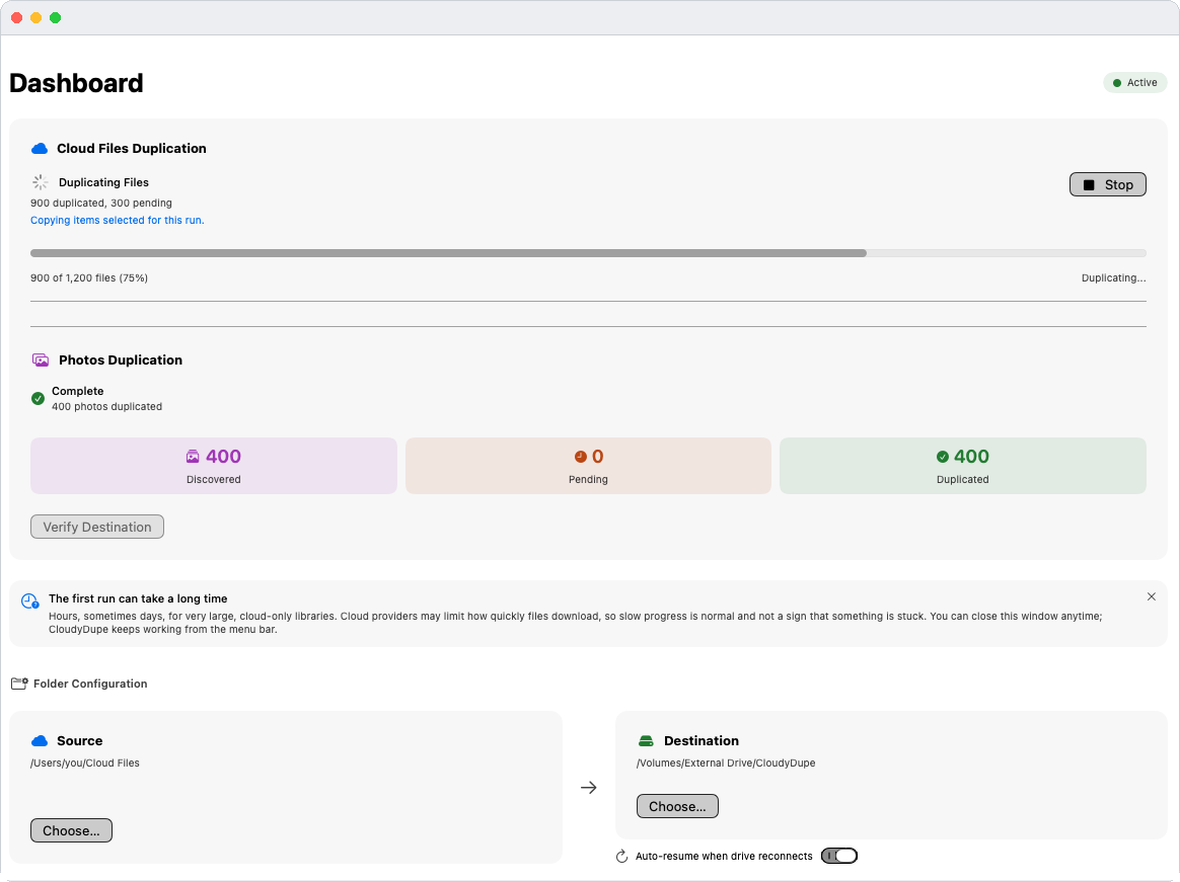
- Live counts for discovered, pending, duplicated and failed, for cloud files and Photos separately.
- Progress and an ETA that update as throughput changes.
- Plain-language notes when something is normal but looks alarming, such as a slow first run.
- The finish time of the last run, so you can tell at a glance whether today's copy already happened.
- A failure list you can act on, with the error for each file rather than one generic warning.
Photos
Your originals, out of the library and onto the drive
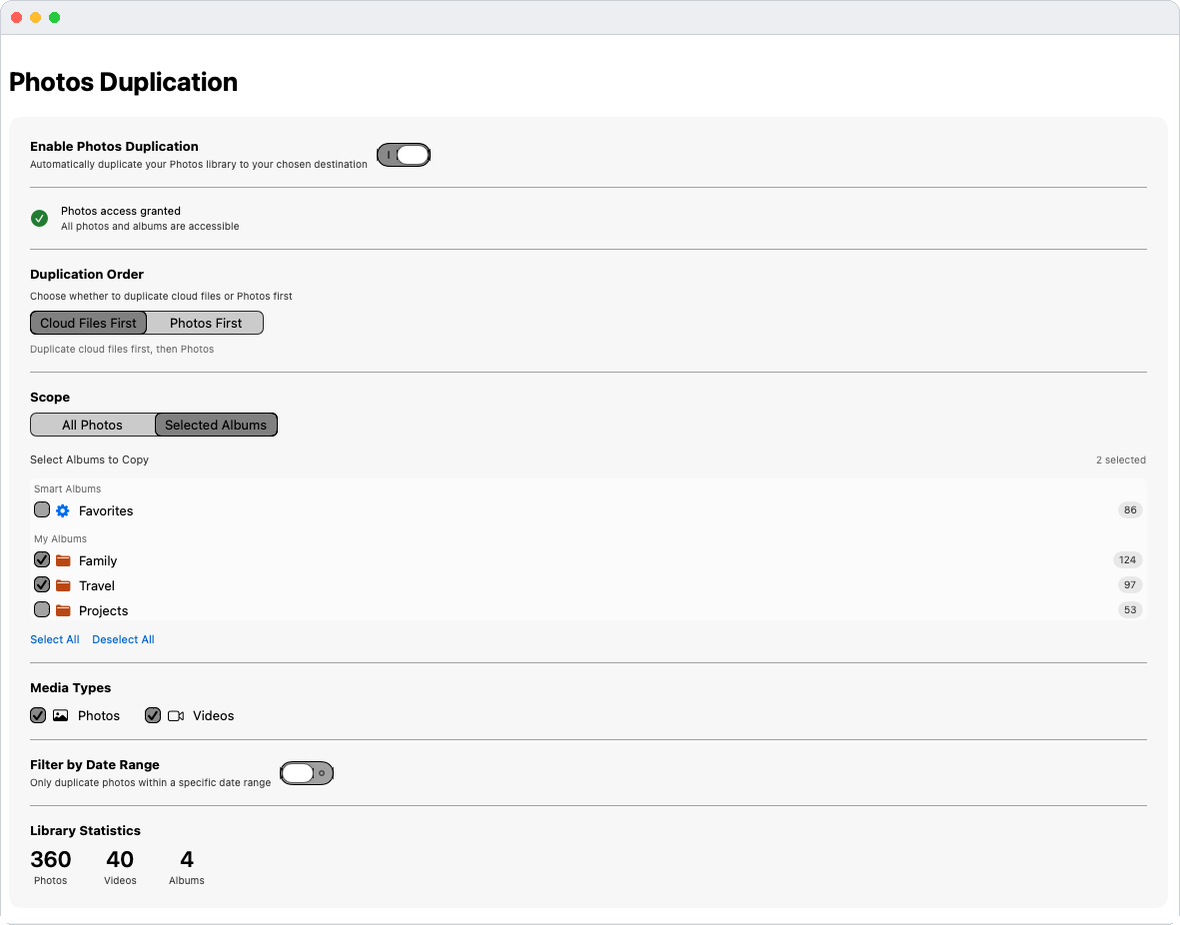
The Photos library is the part people are most afraid of losing and the hardest to copy by hand. With the Photos Duplication in-app purchase, CloudyDupe exports full-resolution photos and videos to your destination as ordinary files.
- All Photos, or selected albums, with the item count shown next to each album.
- Photos, videos, or both.
- A date range filter when you only need a particular stretch of years.
- Order control: cloud files first or Photos first, for when you care which finishes tonight.
- Checksum verification of the copied photos, started by you.
Control
Settings that respect the machine you are using
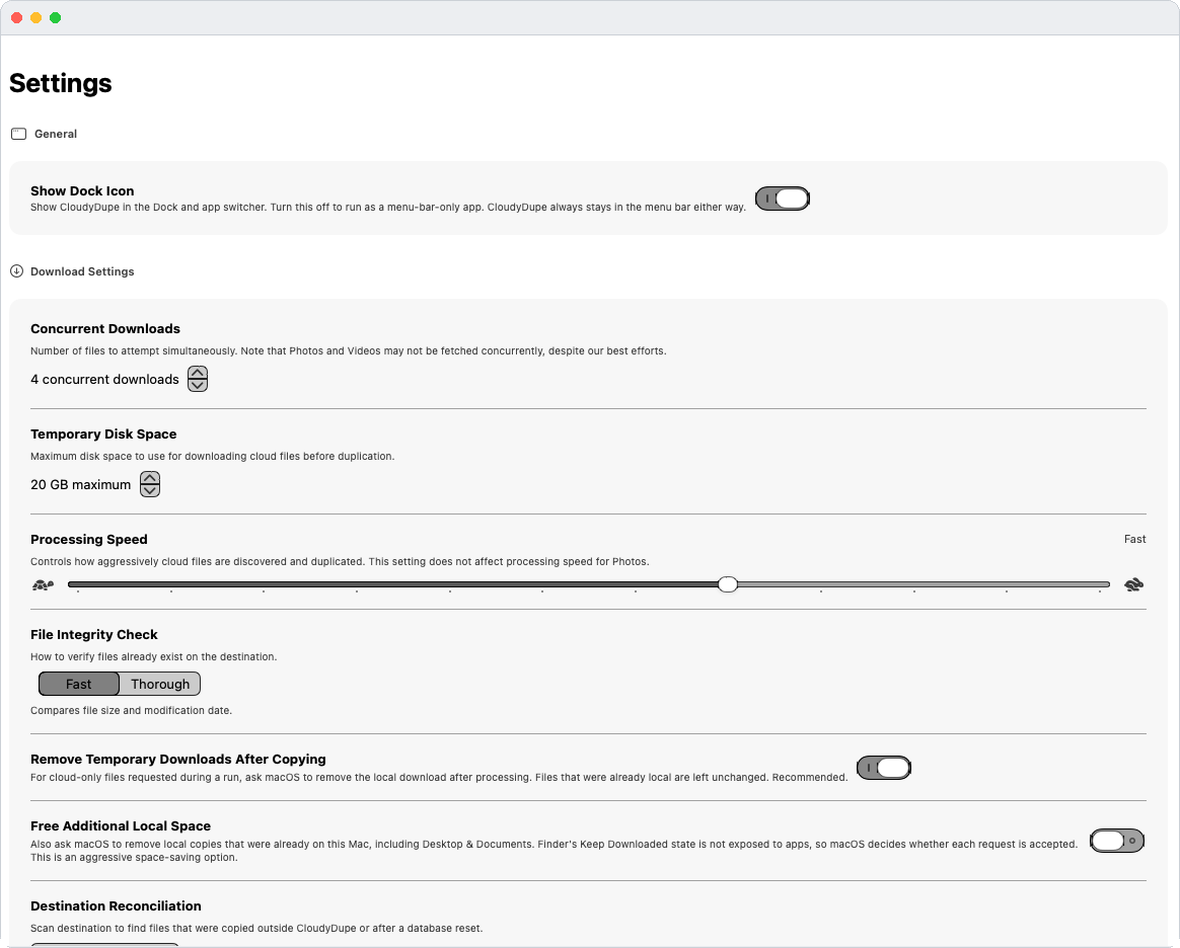
This is a utility, not a service that decides things for you. Every trade-off between speed, disk space and thoroughness is a setting you can see and change.
- Concurrent downloads and a temporary disk space ceiling.
- Processing speed from minimal to full.
- File integrity check: Fast, or Thorough with checksums.
- Remove temporary downloads after copying, so reclaimed space stays reclaimed.
- Free additional local space, an opt-in that also asks macOS to release copies that were already on this Mac.
- Destination reconciliation to re-scan the drive and find files copied outside CloudyDupe.
- Dock icon optional. Run it as a menu-bar-only app if you prefer.
Who uses it
People who want the file, not the promise of the file
CloudyDupe is narrow on purpose. If you have ever opened a folder on a plane and found nothing but placeholders, it was written for you.
- Anyone who turned on Optimize Mac Storage and later wondered where the files went
- Photographers and videographers who want originals on a working drive
- People leaving or shrinking a cloud plan who need the data out first
- NAS and home-server owners feeding a local library
- Consultants and small firms keeping an offline copy of client work
- Anyone selling or wiping a Mac who wants everything on a drive first
- Frequent travelers who need files with no network
What is included
The copying is the app. The extras are optional.
Copying cloud files to a destination you choose is the core of CloudyDupe and needs no subscription. Two additions are available as in-app purchases when you want them.
Cloud file duplication
Included in the app
- Choose any source folder and any destination
- Downloads cloud-only files as needed
- Temporary disk space limit
- Exclusions by file and folder
- Fast or Thorough integrity checking
- Auto-resume when the drive reconnects
- Menu bar operation and skipped-item reports
Manual copying always works without a subscription.
Photos Duplication
In-app purchase, Family Sharing enabled
- Full-resolution photos and videos to your destination
- All Photos or selected albums
- Photos, videos, or both
- Date range filter
- Cloud files first or Photos first
- Checksum verification of copied photos
Bought once. Not a subscription.
Continuous Mode
Optional subscription, Family Sharing enabled
- Adds a 5 to 60 minute rescan interval
- Runs while the app is open
- Cancel any time in System Settings
Convenience only. Everything else works without it, and manual runs stay available.
Purchases are handled by Apple, and current prices for your country are shown in the Mac App Store. In-app purchases are restorable on your other Macs.
Straight talk
What CloudyDupe is not
We would rather you install this understanding exactly what it does. The list below is not fine print, it is the product.
It is not backup software
CloudyDupe copies files to a destination you choose. It does not provide backup services, versioning, archival storage, disaster recovery, or restoration, and it must not be your only copy. Keep an independent backup that does not depend on CloudyDupe or on either drive it touches.
It does not change your cloud
Nothing is deleted from iCloud, nothing is uploaded, and nothing is synced back. Copies go one way: from the source you pick to the destination you pick. Space is reclaimed on your Mac by asking macOS to release local downloads, which is exactly what storage optimization already does.
The first run is slow, and that is honest
Downloading a large cloud-only library takes hours, sometimes days. Cloud providers limit how fast files come down, and no app can go faster than that. CloudyDupe is designed to keep going and to tell you where it is, not to pretend it will be quick.
Verify before you delete anything. Results depend on macOS, Photos access, your network, whether source files are available, and the capacity and format of your destination. Open the copies and check them yourself before acting on the originals.
Privacy
Your files go where you point them, and nowhere else
CloudyDupe has no server for your data because it has no reason to have one. Reading your files and writing them to your drive both happen on your Mac.
Never leaves your Mac
- The contents of your files and photos. Never collected, never transmitted, never stored by us.
- Your files themselves. They are read only to copy them to the destination you selected.
- Your cloud account credentials. CloudyDupe never sees them. macOS handles the downloads.
- Payment details. Purchases are handled by Apple.
What you control
- Analytics are off until you agree. If you opt in, it is anonymous: a random device identifier, counts and sizes, error types, and app and macOS version. Never file names, never contents. Turn it off any time in Settings.
- Problem reports are never automatic. You write the description, you see on screen exactly what will be sent, and you decide whether to send it.
- Failed file names are optional in a report. They often explain a failure, and one toggle leaves them out.
- No account and no sign-up. There is nothing to log in to.
Requirements
Compatibility
| Operating system | macOS 15.0 or later |
|---|---|
| Mac models | Apple silicon and Intel Macs |
| Current version | 2.1 |
| Sources | iCloud Drive and other folders you select, including synced Desktop and Documents once you grant access. Cloud-only download support relies on the macOS file provider, which is why iCloud Drive is the case it is built for. |
| Destinations | External drives, network volumes, and local folders. APFS, HFS+ and exFAT behave best. FAT-formatted drives reject long names and large files, and CloudyDupe reports those as errors rather than hiding them. |
| Photos | Photos Duplication requires permission to your Photos library and an in-app purchase. |
| Languages | English, German, French, Italian, Portuguese (Brazil) and Japanese |
| Distribution | Mac App Store, sandboxed, with access only to the folders you choose |
| Publisher | Vertolini, LLC |
Questions
The questions people ask first
Will this actually download my cloud-only files, or just copy the placeholders?
It downloads them. For each cloud-only item, CloudyDupe asks macOS to fetch the real file, waits for it, copies it to your destination, and then asks macOS to release the local copy again. What lands on your drive is the file, not a stub.
Will it fill up my startup disk while it works?
That is what the temporary disk space setting prevents. You set a ceiling and the download queue stays inside it, waiting for space instead of consuming everything free. With Remove temporary downloads after copying on, each fetched file is released after it has been copied.
Does it delete anything from iCloud?
No. Nothing is deleted from your cloud account, and nothing is uploaded or synced back. The only removal CloudyDupe performs is asking macOS to release local downloads on your Mac, which is the same thing storage optimization does. The cloud copy stays.
Is CloudyDupe a backup app?
No, and we will not sell it as one. It is a copy utility. It has no versioning, no archival guarantees and no restore process, and it must not be your only copy of anything. Keep a real backup that does not depend on CloudyDupe or on either of the drives it uses.
Can I close the window, or sleep my Mac?
Close the window freely: the run continues and the menu bar icon reports status. Sleep pauses the work, because macOS suspends the downloads. On waking, CloudyDupe carries on and picks up items it has not copied yet.
What happens if I unplug the drive in the middle of a run?
The run stops and says the destination is unavailable, and files already copied stay copied. Turn on auto-resume when drive reconnects and plugging it back in starts the work again, continuing rather than restarting.
Read the full FAQ, including drive formats and slow first runs →
Get your files onto a drive you own
Choose a folder, choose a drive, press Start. CloudyDupe does the downloading and copying, and tells you exactly what it did.
- macOS 15 or later
- No account to create
- Your files stay yours